

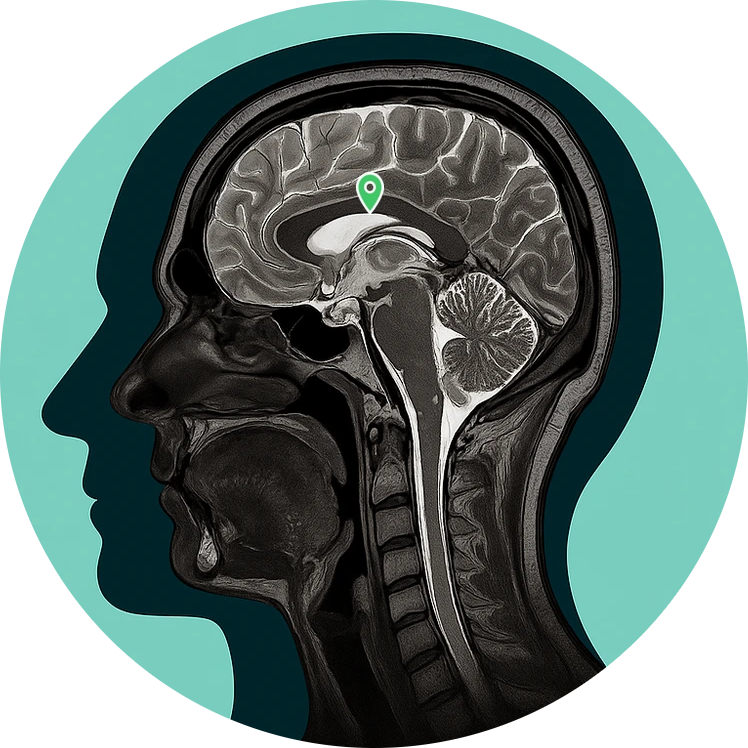
 MRI Anatomy
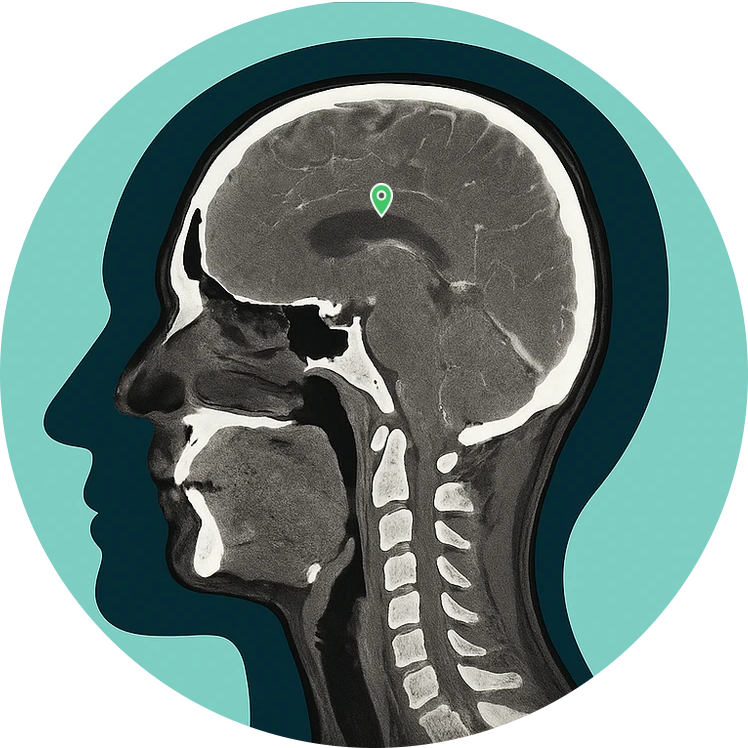 CT Anatomy
 X-Ray Anatomy
 Visible Human Anatomy

Before purchasing a Group plan, please review how team access is assigned and managed.
Select the Group tab and choose the plan that matches your team size (e.g., 10 / 25 / 50 users).
After payment, the account used to purchase becomes the Group Manager (Admin).
Go to your dashboard and click Profile to manage your team.
Add team members by email. You can add only up to the number of users included in your purchased plan.
Added users can log in and access the application immediately (web & mobile).
If you need more seats, upgrade to a higher Group plan. Your manager account remains the same.
Before purchasing a University (IP-based) plan, please review how IP access is configured and managed.
Select the University tab and choose the plan based on the number of IPs you need (e.g., 100 / 250 / 1000 IPs).
After payment, the account used to purchase becomes the IP Admin (Manager).
Go to your dashboard and click Profile to manage your IP access settings.
Add your institution's public IP addresses or IP ranges. You can add only up to the number of IPs included in your purchased plan.
Users connected from an approved IP can access the application without individual user accounts (as per your plan).
If you need more IPs, upgrade to a higher IP plan. Your admin account remains the same.
AnatomyMaster and selected trusted third-party services use cookies and similar technologies to ensure the proper functioning of the website and to improve your learning experience. Cookies help enable secure login, access to educational content, and allow us to analyse website usage and performance so we can improve our services and content.
These technologies may collect limited technical information such as your device type, browser, IP address, and usage data. This information is used only for essential functionality, security, and analytics. AnatomyMaster does not use cookies for advertising and does not sell personal data.
You can accept, refuse, or manage your cookie preferences at any time through our cookie settings. By clicking "Accept all cookies", you consent to the use of analytics and functional cookies as described in our Privacy and Cookie Policy.
These cookies are essential for the website to function properly. They cannot be disabled.
Help us understand how visitors interact with our website to improve user experience.